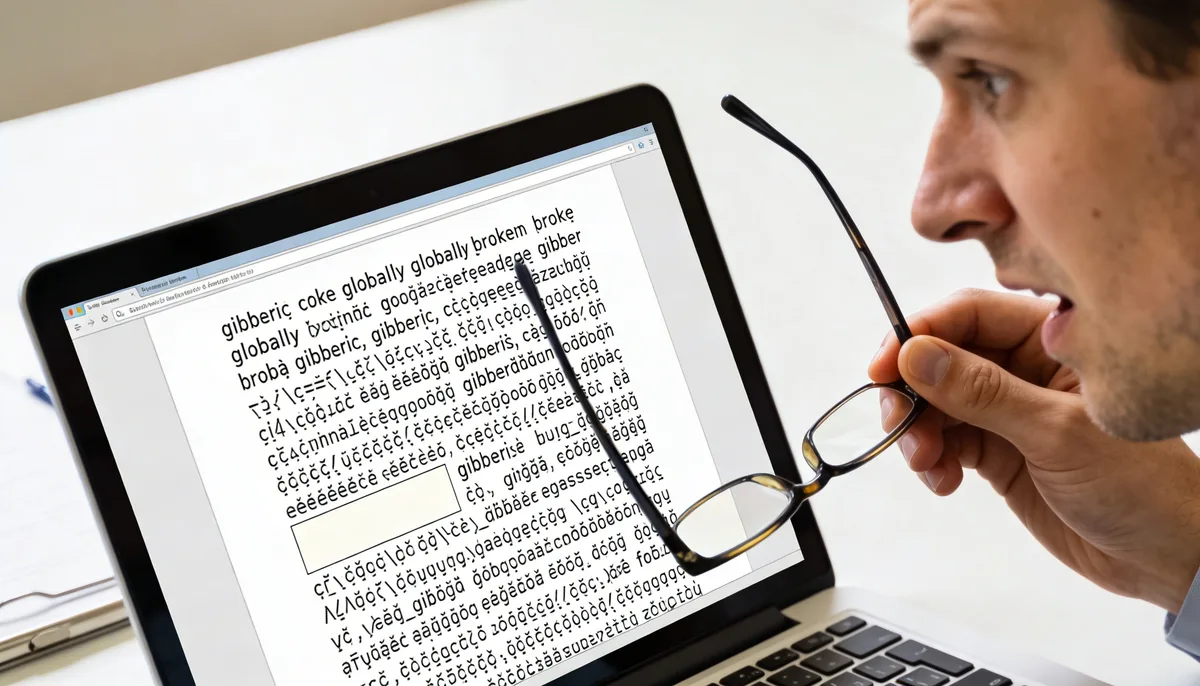
Short answer: open the PDF properties and inspect its font list. If the fonts are not embedded, another device may substitute a different font and change spacing, line breaks or symbols. The most reliable fix is to return to the source document and export a new PDF with font embedding enabled.
What font substitution looks like
Missing or substituted fonts can make letters wider or narrower, move line breaks, change bold or italic styling, or replace special characters. The PDF may look correct on the computer that created it because that device still has the original font installed.
How to check embedded fonts
- Open the PDF in a desktop PDF reader.
- Open the document properties and select the Fonts section.
- Look for an embedded or embedded-subset label beside each important font.
- Open the same PDF on a second device to confirm whether the layout changes.
The exact menu name varies by reader, but the useful evidence is the font list and whether the font data travels with the document.
Best fix: export again from the source
If you have the Word, PowerPoint, InDesign, Canva or other source file, export a new PDF instead of relying on a generic print-to-PDF path. Look for font embedding, PDF/A or compatibility options, then inspect the new PDF before sending it.
What to do when the source file is missing
- Preserve appearance: convert important pages with PDF to JPG and rebuild them with JPG to PDF. This locks the visual page as an image, but the text will no longer be normally editable.
- Recover editable text: use PDF to Word, replace the problematic fonts and export a new PDF. Review the layout because conversion can introduce changes.
- Keep the original: never overwrite the only copy while testing a repair.
Font troubleshooting checklist
| Symptom | Likely cause | Best next step |
|---|---|---|
| Different line breaks on another device | Font not embedded | Export again with embedding enabled |
| Symbols show as boxes | Missing glyph or incompatible font | Replace the font in the source and export again |
| Appearance must be locked | Source file unavailable | Use an image-based fallback and label it as non-editable |
| Text is editable but layout changed | Conversion or replacement changed metrics | Compare against the original page by page |
When should you compress the repaired PDF?
Fix the font problem first and compress only after the new PDF passes a visual check. Use Compress PDF on a separate copy, then inspect headings, small text, symbols and page breaks on at least two devices.
Font problems are usually an export or compatibility issue, not proof that the PDF is corrupt. Check embedding, re-export from the source when possible, and preserve the original during every test.