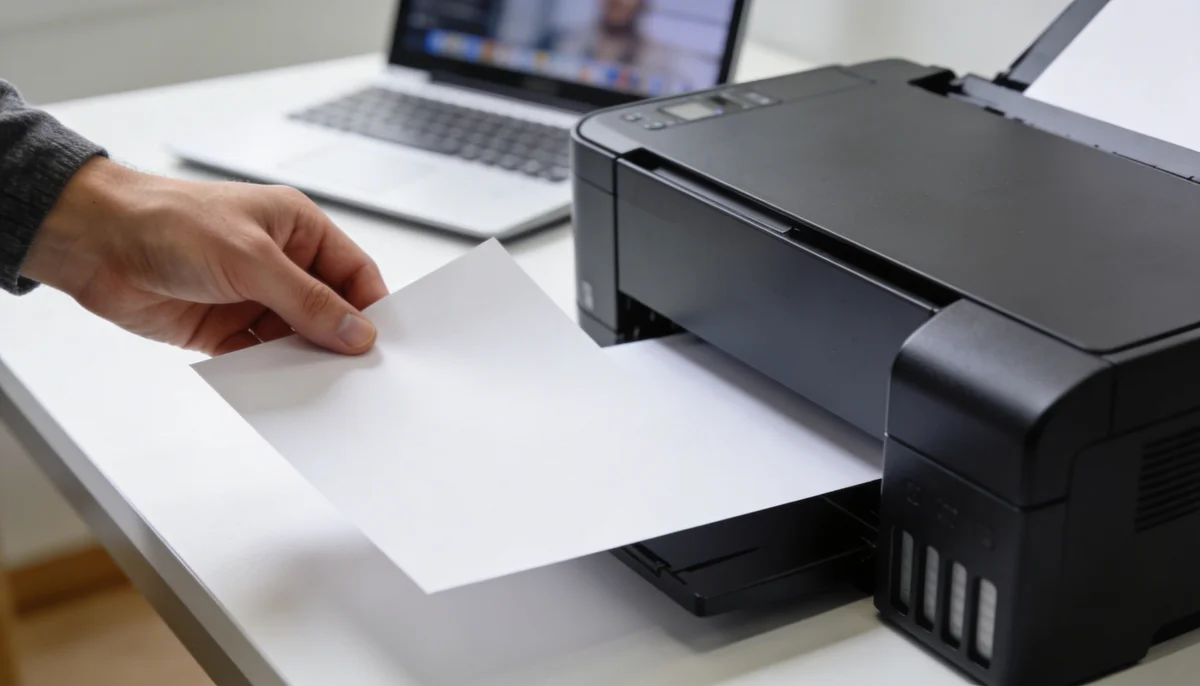
Short answer: make a copy of the PDF, try printing one page from a dedicated PDF reader, and then test the likely causes in order: print permissions, a rendering problem, a hidden layer, a damaged download, or a printer driver issue. Keep the original untouched until you know which step fixes the output.
First, identify whether the problem is the file or the printer
- Print a different PDF from the same application.
- Try the affected PDF on another printer or save it as a new local copy.
- Check whether the blank result affects every page or only selected pages.
If other PDFs print normally, focus on the document or the PDF reader. If every PDF is blank, start with the printer queue, driver or device.
Check print permissions
A PDF can open normally while its permissions restrict printing. In a desktop PDF reader, open the document properties and check the security or permissions section. If printing is not allowed, ask the owner for an unrestricted copy or use Unlock PDF only when you have the right to process the file.
Try printing from a dedicated PDF reader
Browser viewers are convenient, but a complex PDF may render differently when it is printed from a browser tab. Download the file, open the local copy in a dedicated reader and print a single test page. This also rules out a partially loaded browser preview.
Use Print as Image for rendering problems
Transparency, masks, vector effects and unusual combinations of layers can confuse a printer driver even when the screen preview looks fine. If your reader offers Print as Image, use it for one test page. This rasterizes the page before it reaches the printer, so inspect small text and fine lines before printing the full document.
Re-download or re-export the PDF
A damaged download or an export with a problematic layer can affect only some pages. Download the file again from the original source. If you own the source document, export a fresh PDF and compare it with the previous copy. You can also try Compress PDF as a diagnostic copy, then check the result on screen before printing.
Quick diagnosis
| What you see | Most likely area | Next safe test |
|---|---|---|
| Every PDF is blank | Printer or driver | Print a test page and reinstall the driver if needed |
| Only one PDF is blank | File, permissions or rendering | Open a fresh local copy in a dedicated reader |
| Only some pages are blank | Layer, transparency or damaged page data | Print one affected page as image |
| Browser is blank but desktop reader works | Browser viewer or incomplete load | Download before printing |
What to check before printing the full file
- Confirm that the test page contains the expected text and images.
- Keep a copy of the original PDF.
- For official documents, inspect signatures, small text and page numbers after the test.
- Do not remove password or permission controls unless you are authorized to do so.
Most blank-printing problems become easier once you separate document rendering from printer hardware. Test the smallest change first, record what worked, and only then create a final copy for printing.